
Profile and teams
Create or join a team within your company to add another level of friendly competition.
Teams
Why create a team?
- Friendly competition between departments or services
- Extra motivation with the colleagues closest to you
- A leaderboard between teams of its own
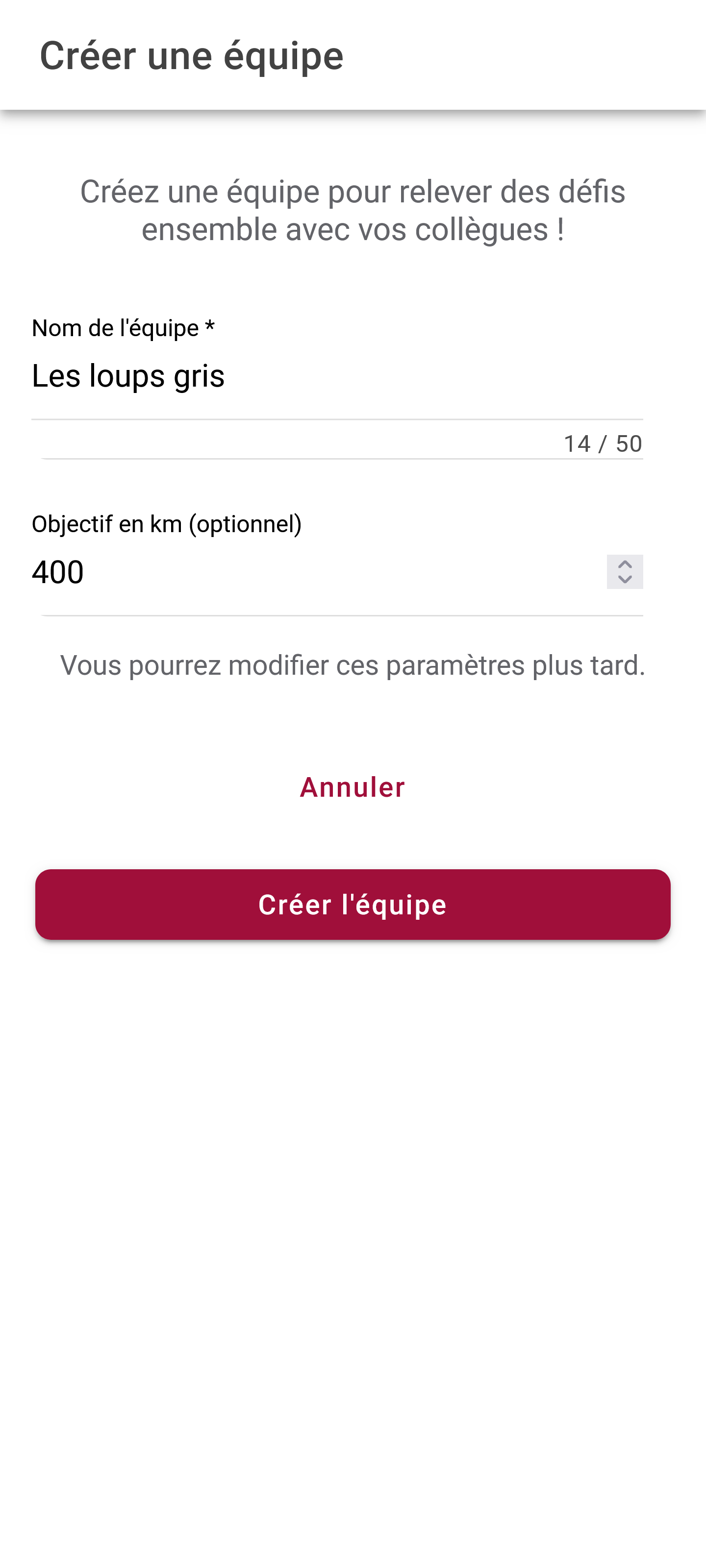
Creating a team
- Go to Profile > Team management
- Tap “Create a team”
- Give your team a name
- Share the access code you are given with your colleagues
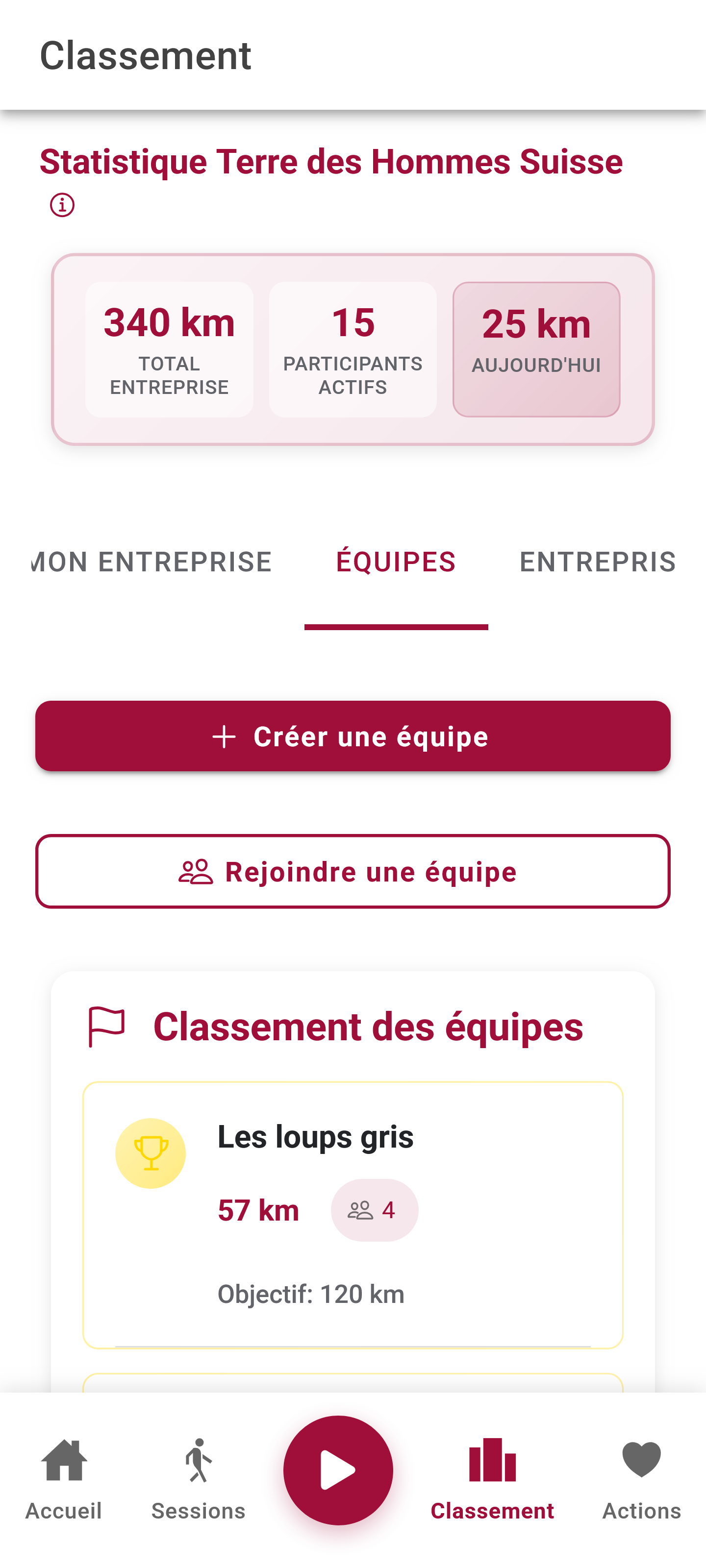
Joining a team
- Go to Profile > Team management
- Tap “Join a team”
- Enter the access code a colleague gave you
- Confirm
Sharing your team’s code
- Go to Team management
- Tap “Copy code” or “Share”
- Send it to your colleagues by e-mail, chat or any other means
Seeing who is in the team
- The list of members appears under team management
- See how many kilometres each member has walked
- Follow the team’s activity
Settings
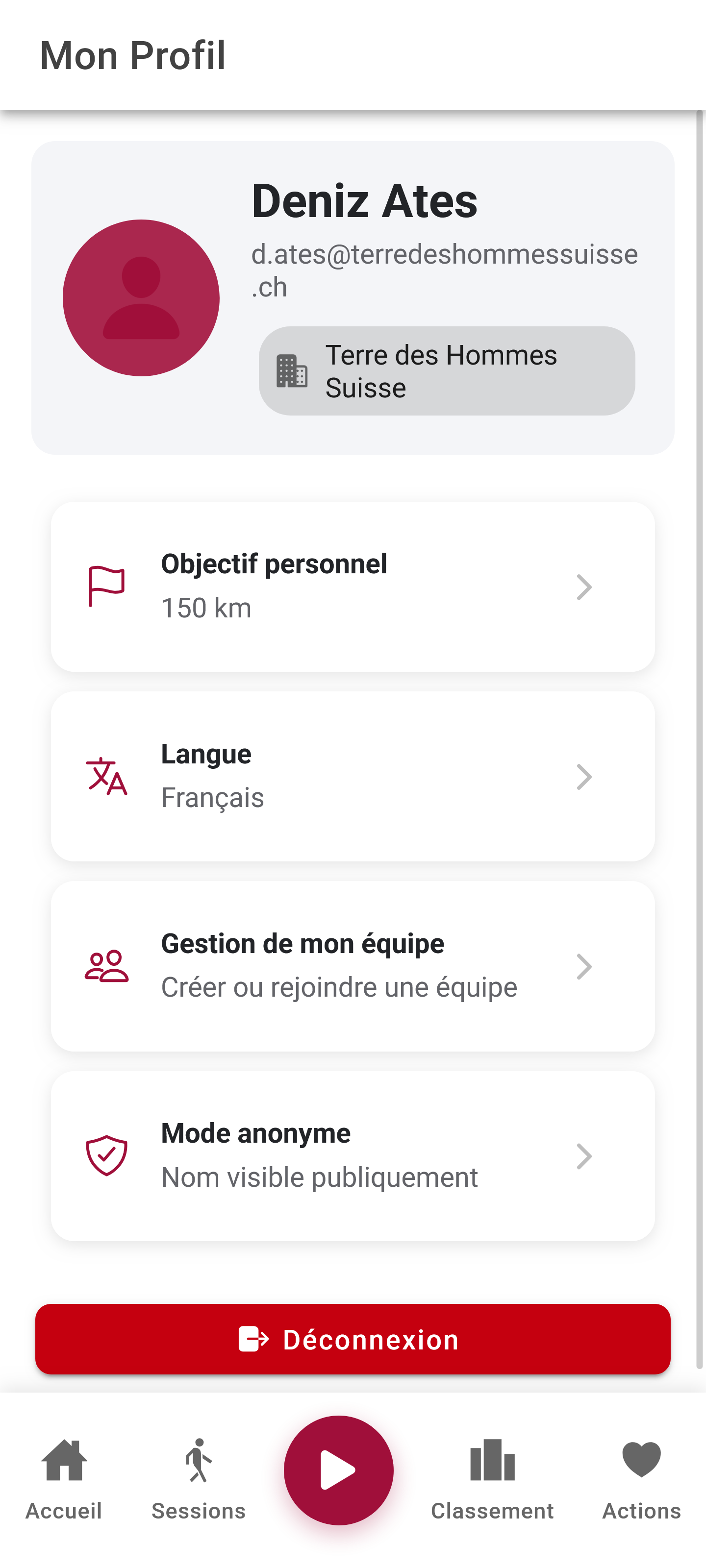
Adjust the app to suit you from the settings.
Finding the settings
- Go to Profile
- Tap the Settings icon (the cog)
What you can change
| Setting | What it does |
|---|---|
| Personal target | Set your target in kilometres |
| Language | French or English |
| Team management | Create, join or leave a team |
| Anonymous mode | Hide your name on the leaderboards |
Notifications
Set up reminders so you keep going and miss nothing.
The kinds of notification
| Notification | What it does |
|---|---|
| Daily reminder | A reminder each day to get you walking |
| Badges and leaderboard | Tells you when you unlock a badge or your position changes |
| Team and company activity | Keeps you up to date with your team and your company |
Turning notifications on and off
- Go to Profile > Settings
- Open the Notifications section
- Turn each kind of notification on or off as you prefer
Tip: turn the daily reminder on to work walking into your routine.
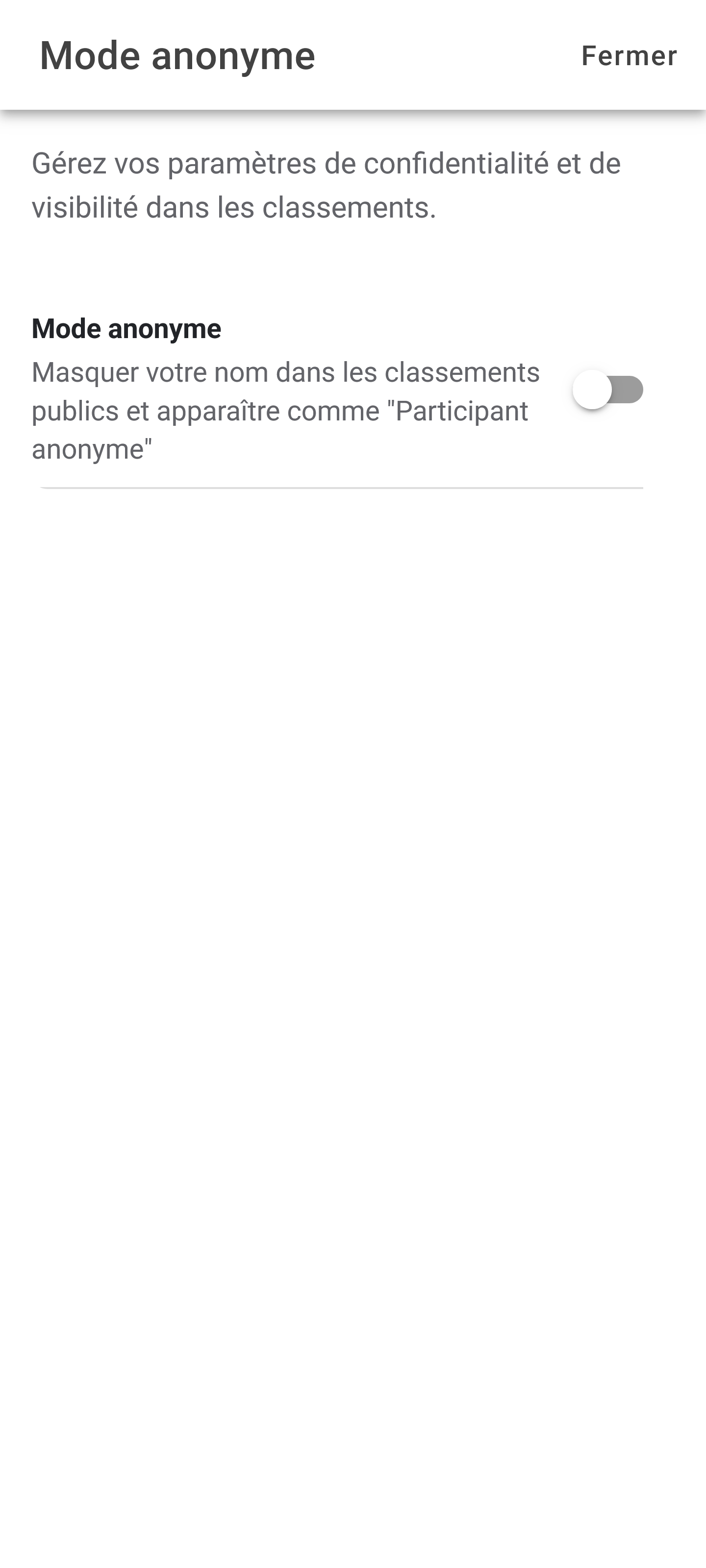
Anonymous mode
If you would rather not be named:
- Turn on Anonymous mode in the settings
- Your name is hidden on the leaderboards
- Your kilometres still count for your team
Signing out
To sign out:
- Go to Profile
- Scroll to the bottom
- Tap “Sign out”
Your data is kept and you can sign back in whenever you like.
Deleting your account
You can do it yourself, from the app:
- Go to Profile
- Scroll to the bottom
- Tap “Delete my account”, confirm, then enter your password
Careful: deletion is immediate and final. Your account, your sessions and your team membership go, and your kilometres are taken out of the figures. Nothing can be recovered afterwards.
Common questions
Can I be in more than one team?
No — you can only be in one team at a time. You can leave your current team to join another.
Is my data safe?
Yes. Your data is stored securely and is only shared with your company as part of the challenge.
The event is over — can I still see my data?
Yes, your history stays available after the event ends.
Still need help?
- E-mail: n.garcia@terredeshommessuisse.ch
- Your company contact: the person running the challenge at your organisation
Thank you for taking part in the Marche des entreprises.
Every kilometre counts towards supporting children with Terre des Hommes Suisse.

Girls in Mali supported by Terre des Hommes Suisse