
Recording your walks
There are two ways to record a walking session: by hand, or with automatic tracking.
Walking or running?
Both count. For every session — started in the app or entered by hand — you choose between Walk and Run.
That choice is what the app uses to work out your distance when it counts your steps: it assumes a stride of 0.75 m walking and 1 m running. On the leaderboards, the kilometres add up the same way.
Method 1: entering a walk by hand
Best for recording a walk after the event.
How it works
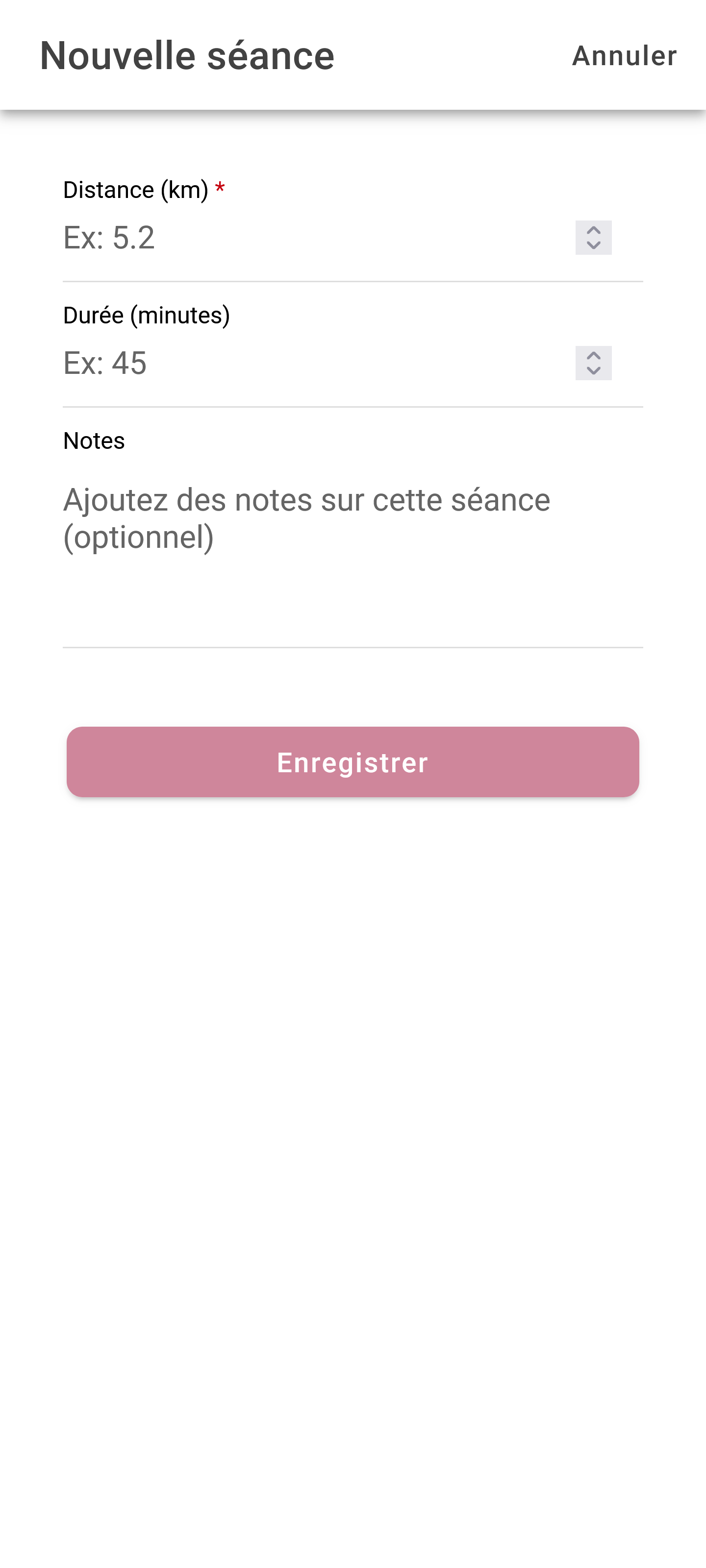
- On the Home screen, tap “+” or “New session”
- Fill in the details:
- Distance (in kilometres)
- Duration
- Notes (optional)
- Tap “Save”
Tip: a health app (Apple Health, Google Fit) or a smartwatch will tell you how far you walked.
Method 2: automatic tracking
The app can count your steps as you walk.
Starting a live session
- On the Home screen, tap “Start a session”
- Allow access to the step counter if you are asked
- Start walking.
While you walk
The screen shows, as you go:
- Timer: how long you have been walking
- Step count: counted for you
- Estimated distance: worked out from your steps
The controls
| Button | What it does |
|---|---|
| Pause | Pauses the session and stops the counter |
| Resume | Carries on after a pause |
| Finish | Ends the session and saves it |
Finishing the session
- Tap “Finish” when you are done
- Check the summary (distance, duration, steps)
- Confirm to save it
Well done. A short celebration appears after every session you record.
Your history
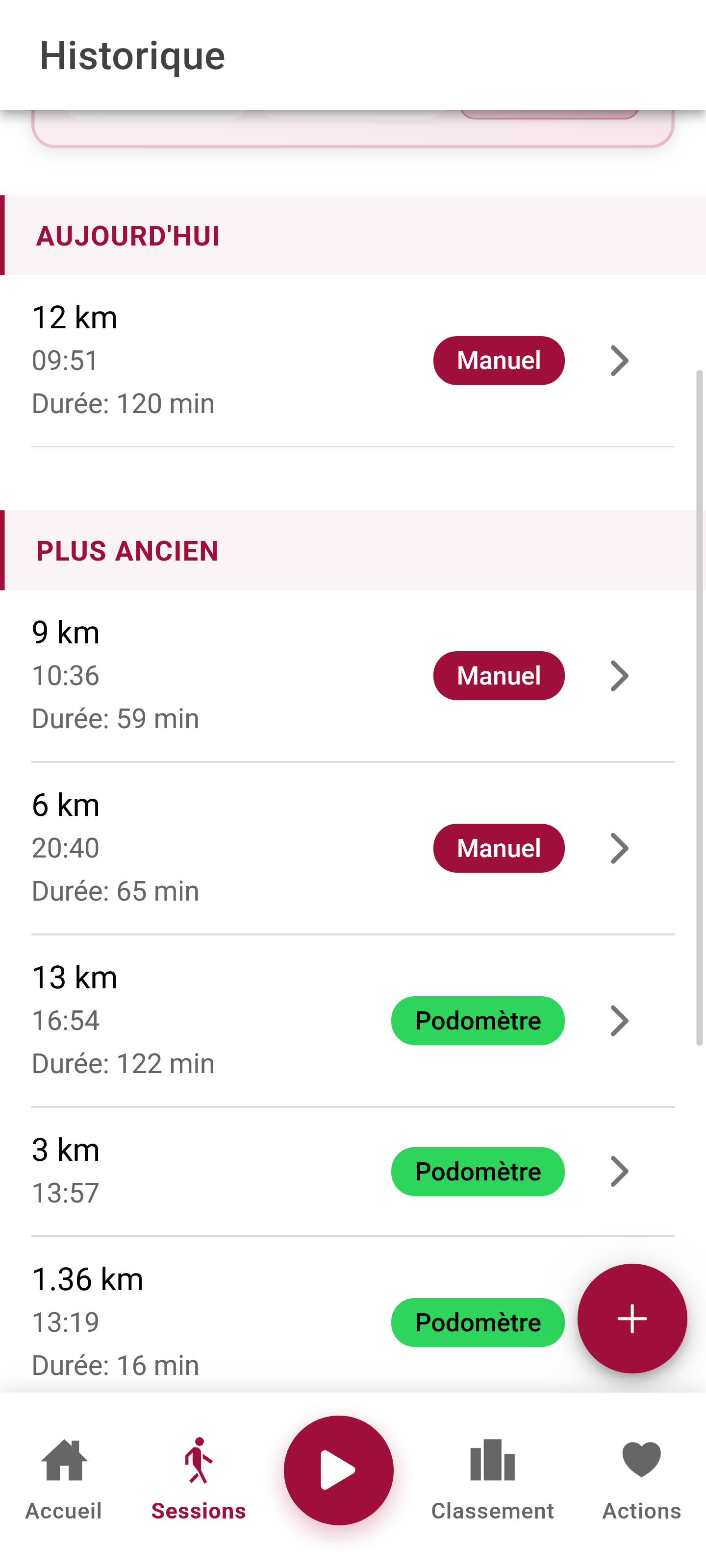
Every session is saved and can be looked up again:
- Go to the Sessions tab
- Scroll through your walks
- Tap a session to see the detail
What is shown
For each session:
- Date and time
- Distance walked
- Duration
- Source (entered by hand, or tracked)
Correcting or deleting a session
Open the session’s detail from the Sessions tab. Two buttons are there:
- Edit this session, to correct a distance, a duration or a note;
- Delete this session, then confirm.
Careful: a deleted session cannot be recovered. For a simple typing mistake, correct it rather than delete it.
Personal targets
Setting your target
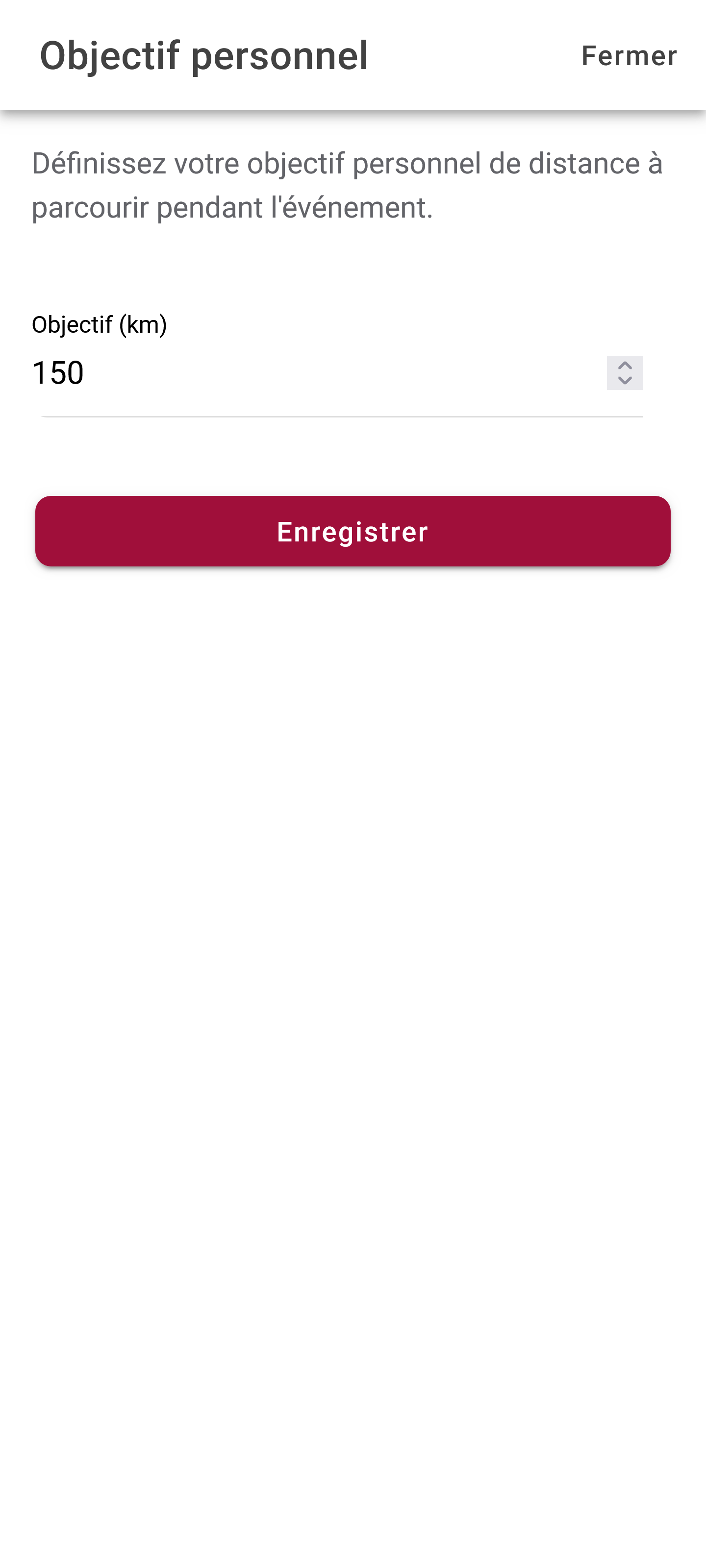
- On the Home screen, tap your personal progress bar
- Enter your target in kilometres
- Confirm
Following your progress
- The progress bar on the home screen shows how far along you are
- The percentage reached is shown as you go
Common questions
Which method should I use?
- Automatic tracking: for walks you set out on with your phone
- By hand: for walks when you did not have the app with you, or if you use a smartwatch
My steps are not being counted properly
- Check that you have allowed access to the step counter
- Keep your phone in your pocket or in your hand
- On some phones, battery saver mode interferes with step counting
Can I record a walk from a previous day?
Yes — enter it by hand and you can record walks from earlier days.